How to Update a Streaming Device
Streaming devices are designed to make watching movies, TV shows, live channels, and sports simple. However, just like smartphones and computers, they need regular software updates to keep working properly.
Software updates often improve performance, fix bugs, add new features, and strengthen security. They also help ensure your streaming apps continue working correctly as streaming services evolve.
The good news is that updating a streaming device is usually quick and easy. In many cases, updates happen automatically without requiring you to do anything.
This guide explains why software updates are important, how to install them, and what to do if an update doesn’t go as planned.
What Is a Software Update?
A software update is a newer version of the operating system that runs your streaming device.
Manufacturers regularly release updates to improve how the device works. These updates may include:
- Performance improvements.
- Security patches.
- Bug fixes.
- New features.
- Better app compatibility.
- Improved system stability.
Installing updates helps keep your streaming device running smoothly.
Why Are Updates Important?
Many people ignore update notifications because their device already seems to be working. However, software updates provide benefits that may not be immediately visible.
Regular updates can:
- Reduce freezing and crashes.
- Improve streaming performance.
- Fix connection problems.
- Increase compatibility with streaming apps.
- Improve security against newly discovered vulnerabilities.
- Add useful features introduced by the manufacturer.
Keeping your device updated is one of the easiest ways to prevent future problems.
Do Streaming Devices Update Automatically?
Many modern streaming devices check for updates automatically when connected to the internet.
If a new version is available, the device may download and install it in the background or prompt you before beginning the installation.
Automatic updates help ensure your device stays current without requiring constant attention.
How to Check for Updates Manually
If you want to make sure your device has the latest software, you can usually check for updates yourself.
The exact steps vary depending on the manufacturer, but the general process is similar:
- Open the device’s Settings menu.
- Find the System or Device section.
- Select Software Update or System Update.
- Choose Check for Updates.
- Install any available updates.
The entire process usually takes only a few minutes.
What Happens During an Update?
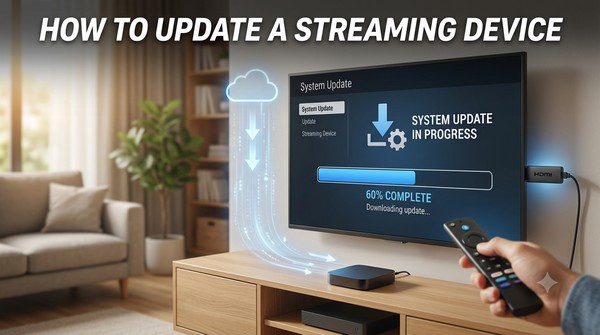
During an update, your streaming device downloads the new software and installs it.
You may notice:
- A progress bar.
- The screen going black temporarily.
- One or more automatic restarts.
- A message indicating the update is complete.
These are normal parts of the update process.
Should You Leave the Device On?
Yes.
While an update is installing, avoid unplugging the streaming device or turning off your television if the device is still working.
Interrupting an update could cause installation problems or require the update to be restarted.
How Often Are Updates Released?
There is no fixed schedule.
Some manufacturers release updates every few weeks, while others may release them only a few times each year.
Major updates often introduce new features, while smaller updates usually focus on security improvements and bug fixes.
Should You Update Streaming Apps Too?
Absolutely.
In addition to updating your streaming device, you should also keep your streaming apps current.
App updates often include:
- Performance improvements.
- New features.
- Bug fixes.
- Better compatibility with the latest device software.
Many devices update apps automatically, but you can usually check manually through the app store if needed.
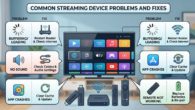
Common Problems During Updates
Update Won’t Download
This is often caused by a poor internet connection. Restart your router and try again.
Update Stops Partway Through
Wait several minutes before taking any action. Large updates may take longer than expected.
Device Keeps Restarting
Some updates require multiple restarts. If the problem continues for an extended period, restarting the device manually may help.
Apps Don’t Work After an Update
Updating or reinstalling the affected app often resolves compatibility issues.
Tips Before Updating
- Use a stable internet connection.
- Keep the device plugged into power.
- Allow enough time for the update to finish.
- Avoid disconnecting cables during installation.
- Update streaming apps after the system update if necessary.
How to Know If Your Device Is Up to Date
Most streaming devices display the current software version in the Settings menu.
If you manually check for updates and receive a message indicating that your device already has the latest software, no further action is needed.
When Should You Replace a Streaming Device?
Eventually, manufacturers stop providing updates for older hardware.
You may want to consider replacing your streaming device if:
- It no longer receives software updates.
- Important streaming apps are no longer supported.
- Performance has become consistently slow.
- It doesn’t support modern video formats like 4K or HDR that you want to use.
Newer devices typically offer faster performance and longer software support.
Common Myths About Software Updates
Myth: Updates Only Add New Features
False. Many updates focus on improving stability, fixing bugs, and strengthening security rather than adding visible features.
Myth: If My Device Works Fine, I Don’t Need Updates
False. Even if everything appears to be working normally, updates often address security issues and improve compatibility with streaming services.
Myth: Updates Always Slow Down Devices
False. While older hardware may occasionally struggle with major software changes, most updates are designed to improve overall performance and reliability.
Frequently Asked Questions
How often should I check for updates?
If automatic updates are enabled, you usually don’t need to check often. Checking manually every month or two is generally enough.
Do updates erase my apps or settings?
No. Standard software updates normally keep your installed apps, settings, and accounts intact. A factory reset is different and removes your personal data.
Can I use my streaming device while it’s updating?
No. It’s best to let the update finish before using the device again.
Do streaming apps update automatically?
Many streaming devices automatically update installed apps, although you can usually update them manually if needed.
What if my device no longer receives updates?
If your streaming device has reached the end of its software support and important apps are no longer compatible, upgrading to a newer model may provide a better and more secure streaming experience.
Keeping your streaming device updated is one of the simplest ways to enjoy a smoother, safer, and more reliable streaming experience. Regular software updates help improve performance, fix bugs, enhance security, and ensure your favorite streaming apps continue to work properly.
Whether updates happen automatically or you install them manually, making sure your streaming device stays current will help you get the most from your entertainment for years to come.