
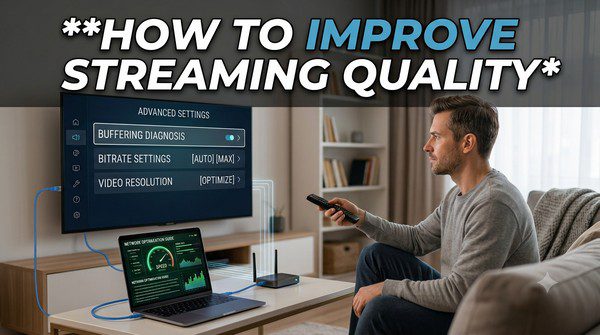
How to Improve Streaming Quality?
Few things are more frustrating than sitting down to watch your favorite movie or live sporting event only to encounter blurry video, constant buffering, or frequent interruptions. Fortunately, most streaming quality issues can be fixed without buying expensive new equipment.
Streaming quality depends on several factors, including your internet connection, Wi-Fi performance, streaming device, and even the settings inside your streaming apps. A weak connection or outdated hardware can prevent you from enjoying movies and TV shows in high definition, even if you pay for a fast internet plan.
In this guide, you’ll learn practical ways to improve streaming quality, reduce buffering, and enjoy smoother playback whether you’re watching on a Smart TV, smartphone, tablet, or computer.
Why Streaming Quality Matters
Good streaming quality makes movies, TV shows, and live events more enjoyable. Sharp images, smooth motion, and clear audio create a better viewing experience, especially on larger televisions.
Poor streaming quality may cause:
- Frequent buffering.
- Blurry or pixelated video.
- Audio and video becoming out of sync.
- Unexpected pauses during playback.
- Lower video resolution than expected.
Most of these problems have simple solutions.
Check Your Internet Speed
Your internet connection is one of the biggest factors affecting streaming quality.
Although exact requirements vary between streaming services, these general recommendations work well for most households:
- 3–5 Mbps for standard definition (SD).
- 5–10 Mbps for high definition (HD).
- 25 Mbps or more for 4K Ultra HD.
If several people are streaming, gaming, or downloading files at the same time, you may need additional bandwidth.
Use a Stable Wi-Fi Connection
Even with fast internet, weak Wi-Fi can reduce streaming quality.
To improve your wireless connection:
- Place your router in a central location.
- Keep it away from thick walls and large metal objects.
- Reduce interference from other electronic devices.
- Restart your router occasionally.
A stronger Wi-Fi signal often results in smoother playback.
Consider a Wired Connection
If your Smart TV or streaming device supports Ethernet, using a wired connection can provide a more stable streaming experience than Wi-Fi.
Ethernet connections are generally less affected by wireless interference and can reduce buffering, especially during live events or 4K streaming.
Close Unnecessary Apps
Running multiple apps at the same time can slow down older streaming devices.
Closing unused applications frees up system memory and processing power, allowing your streaming app to perform more smoothly.
This is especially helpful on smartphones, tablets, and older Smart TVs.
Keep Your Streaming Apps Updated
Streaming services regularly release updates that improve performance, fix bugs, and enhance compatibility.
Keeping your apps updated ensures you’re using the latest version with the newest improvements.
Many devices update apps automatically, but it’s still worth checking periodically.
Update Your Device Software
Your Smart TV, streaming stick, or media player also receives software updates.
These updates may improve:
- System stability.
- Video playback.
- Network performance.
- Compatibility with streaming apps.
- Security.
Installing software updates can solve issues you didn’t even realize were affecting your streaming experience.
Choose the Best Video Quality Setting
Many streaming apps automatically adjust video quality based on your internet connection. However, some services allow you to manually choose your preferred quality.
If your connection is fast and stable, selecting HD or 4K (when available) can improve picture quality.
If buffering occurs frequently, lowering the video quality slightly may provide smoother playback.
Reduce Network Congestion
Your home internet connection is shared by every connected device.
If multiple people are streaming movies, downloading large files, attending video calls, or gaming online at the same time, available bandwidth is divided among all users.
Whenever possible, avoid heavy internet activity during important live events or movie nights.
Restart Your Streaming Device
Like computers and smartphones, streaming devices benefit from an occasional restart.
Restarting clears temporary files, refreshes system memory, and can resolve minor performance problems that develop over time.
It’s a simple step that often improves responsiveness.
Use Modern Streaming Hardware
Older Smart TVs and streaming devices may struggle with newer apps or high-resolution content.
If your device is several years old and frequently buffers despite having a fast internet connection, newer hardware may offer noticeable improvements in speed and performance.
Optimize Your Home Network
If your household relies heavily on streaming, a few small changes can improve overall performance.
- Place your router in an open area.
- Keep firmware updated.
- Avoid placing the router inside cabinets.
- Limit unnecessary background downloads.
- Upgrade aging networking equipment if needed.
Common Causes of Buffering
Buffering doesn’t always mean your internet is slow.
Other possible causes include:
- Weak Wi-Fi signal.
- Network congestion.
- Outdated streaming apps.
- Old device software.
- Temporary service issues.
- Overloaded streaming devices.
Identifying the cause helps you choose the right solution.
Tips for Better 4K Streaming
Streaming in 4K requires more bandwidth than standard HD video.
For the best experience:
- Use a fast and stable internet connection.
- Prefer Ethernet when possible.
- Keep your streaming device updated.
- Ensure your TV supports 4K playback.
- Use certified HDMI cables if connecting external devices.
Common Myths About Streaming Quality
Myth: Faster Internet Always Solves Buffering
False. Poor Wi-Fi, outdated devices, or overloaded home networks can also cause streaming problems.
Myth: Every Video Streams in 4K Automatically
False. Video quality depends on your device, internet connection, streaming plan, and the content itself.
Myth: Restarting Devices Doesn’t Help
False. A quick restart often resolves temporary performance issues and improves stability.
Frequently Asked Questions
Why is my streaming quality blurry?
Your streaming app may automatically lower video quality if your internet connection becomes unstable or your Wi-Fi signal is weak.
Does Wi-Fi affect streaming quality?
Yes. A poor wireless connection is one of the most common causes of buffering and lower video resolution.
Is Ethernet better than Wi-Fi?
For most home setups, a wired Ethernet connection offers greater stability and can reduce buffering compared to Wi-Fi.
Should I leave my streaming apps updated?
Yes. Updates often improve performance, security, and compatibility with newer devices and streaming services.
Can too many connected devices slow streaming?
Yes. When multiple devices share the same internet connection, available bandwidth is divided, which may affect streaming performance.
Final Thoughts
Improving streaming quality doesn’t have to be complicated. In many cases, simple changes such as strengthening your Wi-Fi signal, updating your streaming apps, restarting your device, or reducing network congestion can make a noticeable difference.
Whether you enjoy movies, live TV, sports, or documentaries, following these tips will help you reduce buffering and enjoy a smoother, more reliable streaming experience. Regularly maintaining your devices and home network ensures you’re getting the best possible picture quality every time you press play.